 OmniPressix
Card data and placeholders
Importing card data (CSV/ODS)#
With “Import CSV or ODS file” in the “Card data” area you load the data for the cards. The program recognises the format from the content:
- CSV: The separator (
;,,or tab) is detected automatically, as are UTF-8 (with or without BOM) and Windows-1252 (typical Excel export). - ODS (LibreOffice Calc, OpenOffice, also downloadable from Google Sheets as .ods): The first sheet is read, and as the cells are displayed – a postcode
01234as text stays01234. Multi-line cells keep their line breaks, comments on cells are ignored. Password-protected spreadsheets must be saved without a password first. - Excel (.xlsx) is not read directly: in Excel choose “Save as → CSV UTF-8” or open the file in LibreOffice and save it as .ods or CSV.
For both formats:
- The first non-empty row contains the column names, every further row is a card.
- Completely empty rows and columns without names are skipped.
The default front expects these columns:
Nachname;Vorname;Strasse;PLZ;Ort;Kundennummer
Mustermann;Erika;Musterstraße 12;12345;Musterstadt;1000123456
Starting without a file: In the “Card data” area, Fill in an empty table yourself (as long as no data is loaded yet) creates a table with one empty row. The columns come from the placeholders of the fields (and the column of the photo fields), so they match the card; without placeholders they are the default columns (Nachname, Vorname, …). The “Edit card data” window opens right away, and with “+ Row” and “+ Column” the table grows until all cards are in it.
In the editor there is also the link “Download sample CSV”. It additionally has the columns Funktion, Telefon and EMail, which the supplied templates (staff ID, business card, name badge) use. If your data has other column names, you either adapt the placeholders in the fields or rename the columns. The editor shows a warning if a placeholder has no matching column.
Load from the directory (Active Directory, LDAP)#
In server mode with sign-in and with a service account (OMNIPRESSIX_LDAP_BIND_DN) administrators get the button Load from the directory … under “Import”. The dialog contains:
- Group (DN): the people of this group; empty = all people under the search base (
OMNIPRESSIX_LDAP_BASE_DN). “Also nested groups” applies to Active Directory only. - Additional LDAP filter, e.g.
(department=Vertrieb). Disabled accounts are missing unless you tick “Also disabled accounts”. - Columns: one
attribute = columnper line, e.g.givenName = Vorname,sn = Nachname,mail = EMail; the usual attributes are preset. Only text attributes are loaded: photos and password attributes are blocked. Several values of one attribute are joined with a comma.
If the query finds nobody, the message names the reason (search base, only disabled accounts, group not found or without direct members, filter, empty attributes); the same message is in the log.
The result replaces the card data like a file import (at most 5000 people). The query is in the program’s log.
Data check: duplicate values, missing entries#
The notices in the “Card data” area are built as boxes with short sentences, a tip and – where it helps – a button:
- “These placeholders find no column in your table” (under “Check”): per placeholder with the button “Create column …”. If an existing column is similar (e.g.
{{Strase}}↔Strasse,E-Mail↔EMail), the box suggests it (“Did you mean …?”); “Write as …” changes the placeholder in all fields, Ctrl+Z undoes it. Below are the existing columns. - “Card 3 of 12 (Name) – please check” (under “Cards”): list of notices for the card shown – no entry for a column, text too long, photo missing, duplicate value, barcode content invalid, expiry date – each with a tip and button (“Edit card”, “Upload photos”).
- Unique column and expiry date: boxes with “Show overview” for the cards concerned.
Under “Unique column” in the “Card data” area is the column whose values may occur only once. After the import it is chosen automatically: “Kundennummer” (or similar names such as Mitgliedsnummer, Ausweisnummer, ID), otherwise the column that a barcode outputs. You can choose another column or “no check”.
The choice is remembered: What you chose yourself for “Unique column”, “Check expiry date” and the warning period is remembered by the editor in the browser for files with the same column names (order and upper/lower case do not matter). If you later load such a file again, the choice is already set; with other columns, automatic suggestions work as before. The last 50 table shapes are remembered; deleting the website data in the browser forgets them.
The editor then reports:
- Duplicate values in this column, with the cards concerned (e.g. ““1001” (cards 2, 7)”), and cards where it is empty – right at import.
- For the card currently shown: empty entries (a placeholder whose column is empty for this card), a missing photo for image fields “From photos”, a barcode whose content does not fit the format (e.g. umlauts with Code 128, wrong check digit for EAN), and duplicate values.
- An expiry date that has already passed or is coming soon (see below).
Expiry date: Under “Check expiry date” you choose the column with the date until which a card is valid. After the import it is chosen automatically if it is called e.g. “Gültig bis”, “Ablaufdatum” or “Valid until”. 31.12.2027, 31.12.27, 2027-12-31 as well as month and year such as 12/27 or 12.2027 (valid until the end of the month) are read. The editor reports cards that have expired, that expire in the next few days (warning period adjustable, default 30 days) and dates that it cannot read (e.g. 31.02.2027). The summary is below the selection, the details in the overview of all cards and in the check list before printing. A calculated date such as {{Heute+1J}} needs no check, it never expires.
Before printing (“Create PDF” and “Print directly”) the editor checks all cards of the ticked sides. If there are notices, a list with the cards concerned appears, for many notices with a suggested action as a button: “Edit card” opens the data table at the card, “Upload photos” the Photos area, “Create column “X”” creates a missing column for a placeholder (without card data: “Load card data”). The buttons cancel printing; there is the same for the notice about missing columns below the card data. You can then cancel, look at the cards in the overview or print anyway.
Overview of all cards#
“All cards as overview” in the “Card data” area shows all cards as small thumbnails side by side, front or back as you wish. Cards with notices have a red outline, the notices are below, a line at the top adds them up. With “Only cards with notices” only these remain. A click on a card opens it in the editor.
Choosing cards to print: Every card has a tick. Deselected cards appear paler and are not printed. At the top are three quick choices: “All”, “Only without notices” (all cards without duplicate, expiry, missing photo etc.) and “None”. A notice shows how many cards are chosen. The Print window says what is printed (“Only 5 of 40 cards (selection) will be printed”); there “Choose cards …” leads into the overview, “Only without notices” chooses immediately and “All cards” cancels the selection. This applies to “Create PDF” and “Print directly”; {{Nr}} keeps the number that the card has in the whole table, and the print log contains only the printed cards. If all cards are ticked, “all” applies again – newly imported or added cards are therefore never missing. A new import cancels the selection. You cannot print without a card.
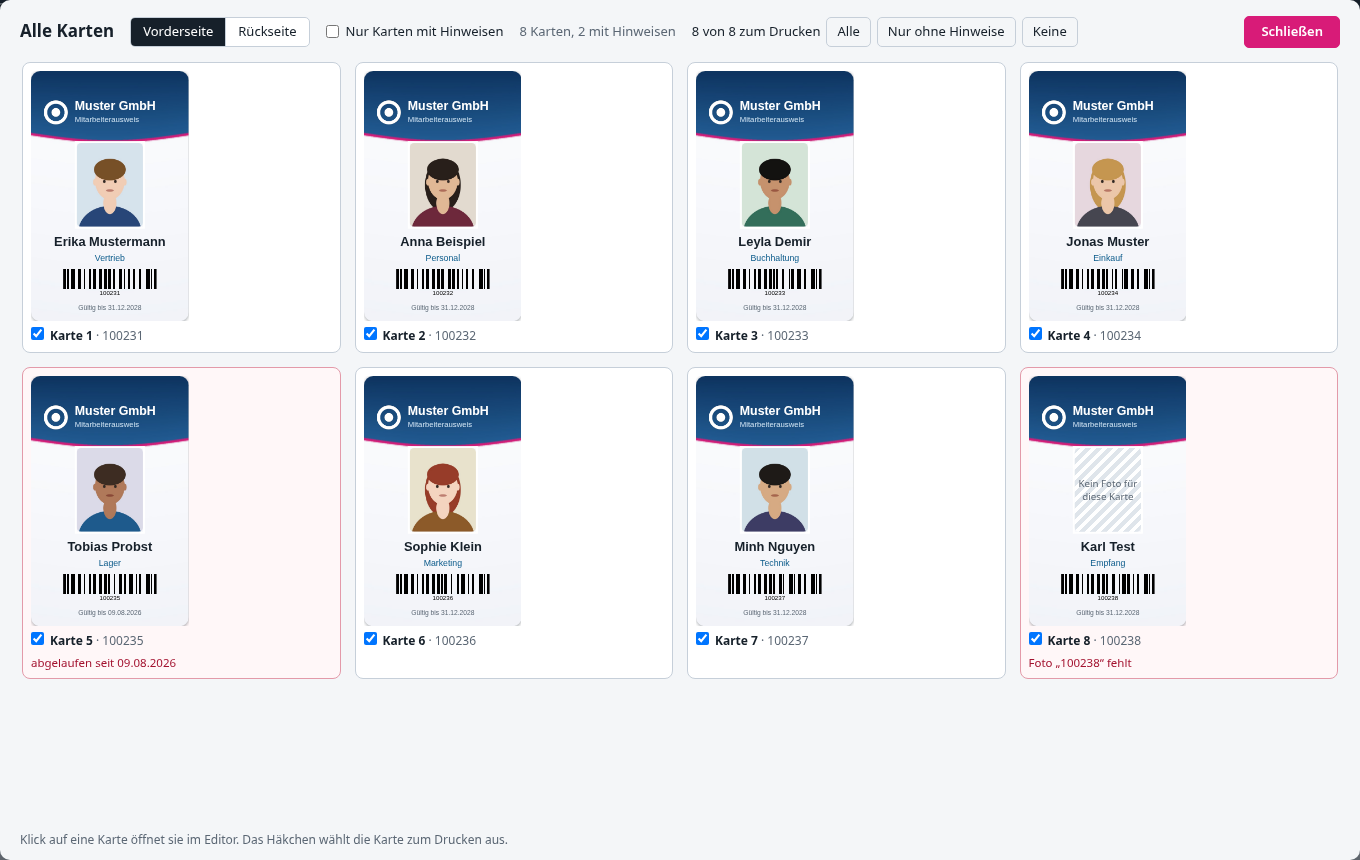
The thumbnails are only drawn when they come into view while scrolling – even with several thousand cards the overview therefore opens without waiting.
Editing card data#
“Edit card data” in the “Card data” area opens a table with all imported cards and columns to correct individual values directly – e.g. a typo or a wrong postcode – without opening the file again in Excel/LibreOffice, changing it and importing it again. Click a cell, change the value, confirm with Tab or a click elsewhere: preview, duplicate and expiry checks are re-checked immediately.
Rows and columns can also be adapted:
- “+ Row” adds an empty card with the existing columns, ready to be filled in.
- “✕” at the end of a row deletes that card – undoable.
- “+ Column” asks for a name and creates it for all cards with an empty value; duplicate column names are not possible.
- “✕” at the column head deletes the column for all cards. If it was chosen as “Unique column” or “Check expiry date”, the choice is reset.
For working with many cards:
- Search field above the table: shows only cards in which the text (in any column) occurs; the page choice then applies to the hits.
- “Replace”: replaces a text in a chosen column (or all) for all cards, e.g. “Abt. 1” by “Abteilung 1” – one step for undo.
- Enter jumps to the cell below, Shift+Enter above.
- The number and first column stay in place when scrolling right; the column width can be dragged at the right edge of the heading.
- If the “Unique column” is empty for a card, the cell is marked red.
“↶ Undo” and “↷ Redo” in the window (also Ctrl+Z / Ctrl+Y as long as the cursor is not in a field) undo changes of values, rows and columns – also a deleted card or column together with the reset selection. The history only applies while the window is open and is separate from the layout’s undo.
The changes only affect the data loaded in the browser, not the originally imported file – a new import replaces them completely again.
Placeholders#
In every text and barcode field {{Spaltenname}} stands for the value from the card data. In the “Card data” area under Placeholders the columns of the loaded table (from a file, the directory or a template) are clickable buttons: a click inserts {{Column}} at the cursor into the chosen text field, so you do not need to know the spelling (with more than 12 columns “Show all … columns” shows the rest). Without a loaded table there is a notice. Upper and lower case do not matter.
Examples:
| Field content | Result |
|---|---|
{{Vorname}} {{Nachname}} | Erika Mustermann |
{{PLZ}} {{Ort}} | 12345 Musterstadt |
Kundennr. {{Kundennummer}} | Kundennr. 1000123456 |
A placeholder without a matching column stays empty in the PDF. As long as no card data is loaded, the preview shows sample data.
Built-in placeholders are filled in by the program itself (in the “Card data” area under “Filled in by the program” (collapsed, click the heading to expand) with plain text and the result for the card shown as buttons to insert; “Numbering starts at” sets the first number):
| Field content | Result (example: today is 27.09.2026) |
|---|---|
{{Nr}} | running number of the card: 1, 2, 3 … |
{{Nr:4}} | with leading zeros: 0001, 0002 … |
{{Heute}} | 27.09.2026 |
gültig bis {{Heute+1J}} | gültig bis 27.09.2027 |
{{Heute+30T}}, {{Heute+2W}}, {{Heute+6M}}, {{Heute-1J}} | days, weeks, months, years, also backwards |
{{Heute+2J:MM/JJ}} | 09/28 – your own format from TT, MM, JJ, JJJJ |
What {{Nr}} starts with is set in the “Card data” area under “{{Nr}} starts at” (default 1) – e.g. 1001 if the last series stopped at 1000. Counting is in the order of the card data. {{Heute}} is the date of printing or of PDF creation. The step from card to card (default 1) is below it; with 10, 1001 becomes the numbers 1001, 1011, 1021 … If the table itself has a column “Nr” or “Heute”, its value applies.
Formats: upper case, initials, zeros, date#
After a vertical bar | the value can be transformed for the card without editing the card data in Excel. Several formats are applied one after another.
| Field content | Result (example) |
|---|---|
{{Nachname|gross}} | MÜLLER-LÜDENSCHEIDT (ß becomes SS); also upper |
{{Nachname|klein}} | müller-lüdenscheidt; also lower |
{{Nachname|titel}} | Müller-Lüdenscheidt – every word capitalised, also after a hyphen; also title |
{{Vorname|1}}. | M. – only the first characters (1 to 99), e.g. for initials |
{{Kundennummer|000000}} | 000123 – padded on the left with zeros to as many places as there are zeros |
{{Nr|000000}} | 000001 – also works with the built-in placeholders |
{{Gültig bis|MM/JJ}} | 12/27 from 31.12.2027 – reformat a date with TT, MM, JJ, JJJJ (English DD, YY, YYYY) |
{{Vorname|1|gross}}. | M. – first shorten, then upper case |
Dates such as 31.12.2027, 31.12.27, 31/12/2027, 2027-12-31 and 12/2027 (then the last day of the month) are read. A value that is not a date stays as it is. Empty values stay empty, even with 000000. An unknown format such as {{Name|fett}} is skipped; the status display and the check list before printing point this out.