 OmniPressix
Saving layouts and templates
Saving and loading layouts#
In addition to saving as a file, the editor saves the layout automatically in the browser (see Undo and automatic caching); “Start a new layout” in the Save window starts again with the standard card.
“Save layout” writes the file kartenlayout.opx (see File format .opx). It contains all fields of both sides (also image fields with a fixed image and the chosen CSV column for “From photos”), the background images, the loaded fonts and the loaded card data. With “Load layout” you get the state back; older .json files can be loaded too. The photos are in the program’s photo folder anyway and fit as long as their names match the card data.
File format .opx#
Layouts and exported templates have the extension .opx. This is a ZIP archive, similar to .ods in LibreOffice: the layout is in it as layout.json, background images and fonts as separate files (images/, fonts/), no longer as bloated Base64 text; identical images (e.g. original and crop of a background without a crop) are stored only once. The files are therefore much smaller than the earlier .json files. Exact structure: File format.
- Packing and unpacking is done by the program; the editor needs the connection to the program for this, as with all files.
- Older files:
.json(also.omnipressix.jsonand.omnipressixfree.json) can still be loaded and imported. - Older program versions do not know
.opx. Anyone sending layouts to someone with a version before 4.4 still needs the.jsonfile for that (e.g. from the program’s template folder). - On Linux with the KDE client a double-click on an
.opxfile opens the layout in the editor.
Template management#
The folder icon at the top of the header (or Ctrl + O) opens a window with all templates. Templates store the same data as “Save/load layout” (format, fields, background images, fonts) – but not as a file to download, rather on the program itself, in the templates/ folder in the program’s start directory (path adjustable with -templates-dir, see Command-line options).
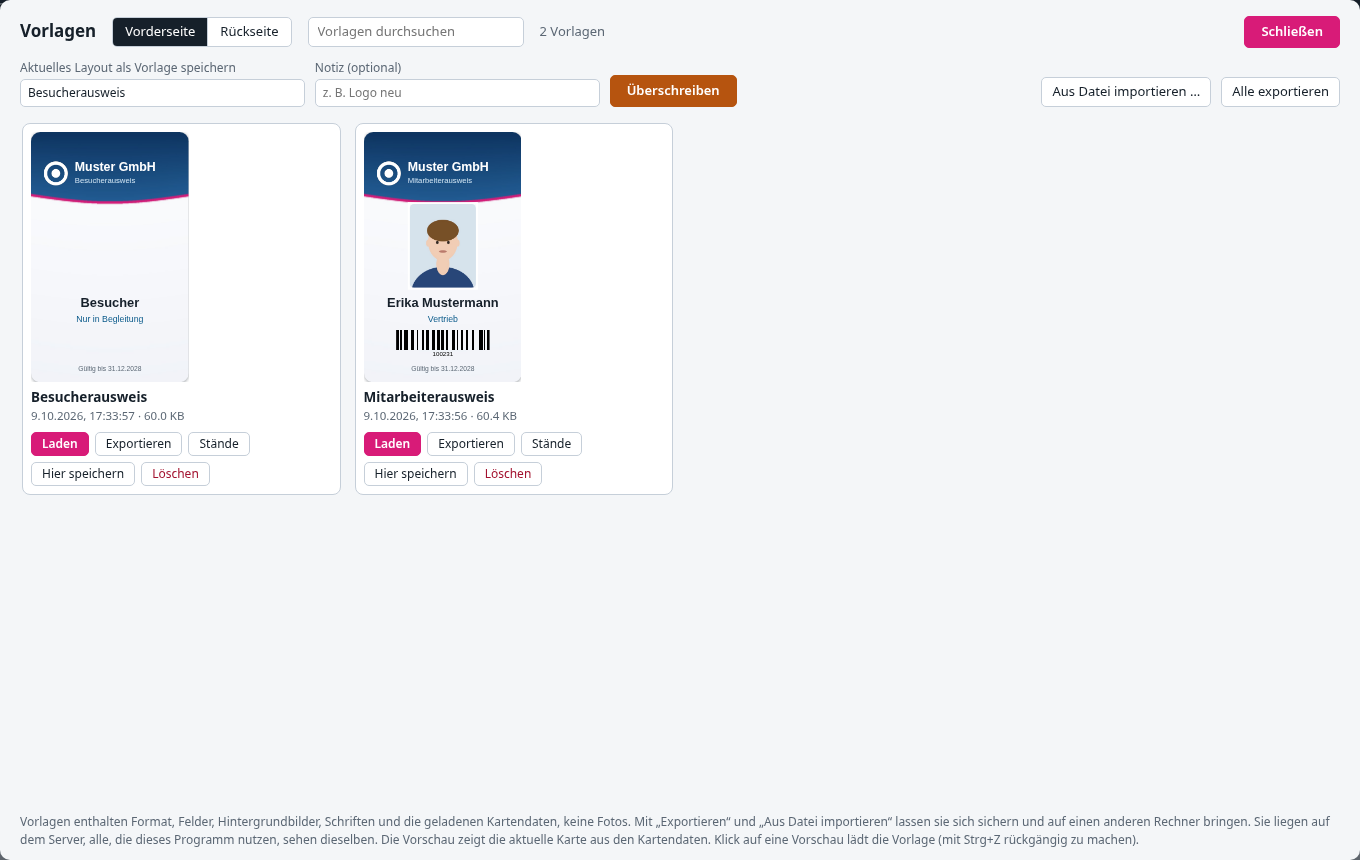
Each template appears as a tile with preview, name, date and size. The preview shows the card with the data of the currently chosen card from the card data (without card data: sample data); at the top you can switch between front and back. The search field filters by name.
- Saving: Next to the icons at the top, a button with a cloud icon (“Save”, after loading with the name of the template) shows the loaded or most recently saved template on the server; an orange dot means “changed since loading”. A click on it or Ctrl + S saves directly into this template, without a dialog. If no template is loaded yet, Ctrl + S opens the window with the name field; enter a name there and click “Save” (or Enter). The name field is prefilled with the name of the loaded template. If the name already exists – even in different upper/lower case – the button shows “Overwrite”; exactly the existing template is overwritten. A question is asked only if it is not the loaded template; the old version always stays under “Versions”. On every tile there is also “Save here” to write the current layout into exactly this template. Saving the layout as a file on your own computer works through the arrow-into-tray icon next to it (Shift + Ctrl + S).
- Loading: “Load” or simply a click on the preview. The current layout is replaced, Ctrl + Z brings it back.
- Deleting: “Delete” below the tile, with a question.
- Exporting: “Export” below the tile downloads the template as a file
Name.opx, “Export all” at the top right all templates one after another – for backup or to move them to another computer. - Importing: “Import from file …” creates one or more such files as templates; the name comes from the file name. If it already exists, the editor asks before overwriting. Files downloaded with “Save layout” can be imported this way too.
Note, simultaneous editing and comparison#
- Note: Below the name there is the field “Note (optional)”, e.g. “New logo”. It is shown in the tile, together with the name of the person who saved last (in server mode with sign-in), and for every earlier version.
- Simultaneous editing: If someone else has saved the template since you loaded it, the editor asks when saving (“was changed by … in the meantime, overwrite anyway?”). If you overwrite, the other version stays under “Versions”. The check only applies if you loaded exactly this template; when saving under another name only the usual overwrite question applies.
- Comparing: “Compare” in the “Earlier versions” dialog shows the version and the current template side by side (the side chosen at the top of the Templates window).
Earlier versions#
When saving over an existing name the previous version is kept (the last 20 per template, adjustable with -vorlagen-staende; identical content is not kept twice). “Versions” below the tile shows them with date and size: “Load” opens a version in the editor (Ctrl + Z brings back the previous layout), “Restore” replaces the template with it. The version before it ends up in the list itself, so nothing is lost. Deleted templates can also be rescued this way: save anew with the same name, then open “Versions”. Only people who may change templates may restore.
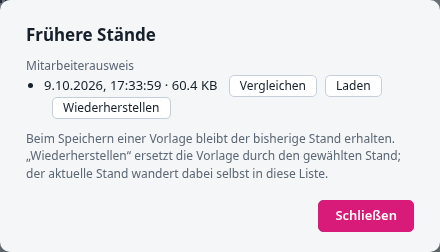
The versions are in the subfolder .versions/ of the template folder. Anyone backing up the folder takes it along.
The previews are only loaded when the tile comes into view – even many large templates with background images therefore open quickly.
Allowed are letters (also umlauts), digits, spaces, full stop, hyphen and underscore, up to 100 characters. Each template is its own .json file in the program’s template folder (internally it stays plain JSON so that history and backup stay simple). It is exported as .opx; a .json file from the template folder can also be imported.
Important if several people use the same program (in server mode with LDAP sign-in only authorised people get in, but among themselves the same applies) (see Build for all systems and the idea of running the program later e.g. in a Docker container with a shared data folder): Template management has no permissions per template – whoever can open the editor sees every template, and whoever may change them (in server mode with LDAP only administrators, otherwise everyone) can overwrite or delete any existing one; the earlier versions stay as a safety net. This is intended so that a team can share templates, but you should be aware of it before you release the program to several people. For a single internal network among colleagues this is usually unproblematic; I would not run it publicly on the internet without additional protection (e.g. a reverse proxy with a login in front).